Saturday, September 19, 2009

Weddings vs. Seniors


Hey gang. Glad to have you back. It's late Saturday evening and I just got home from our latest wedding, which went great! Yet I have this unfinished feeling...

Let me explain. We shoot like mad before, and during the wedding. All of it is basically a visual account of the day. There really isn't a whole lot of time to be artistic while the bride is walking down the isle. You do your damnedest to get the lighting figured before the ceremony, and have things work just so, but that's about it. After the wedding is really the time to be creative and artistic with the bride and groom, but even then you don't have much time. You try to schedule in time to spend with just the bride and groom to do those beautiful show piece, for the portfolio shots. You know the ones that you plan on blowing up huge and taking to the next bridal show... But alas the schedule always changes, your hour and a half turns into 20 minutes, in which time you're supposed to get all of the group shots done as well. This leaves you with about oh 3 minutes to pick one great spot, figure your lighting and go with it... Hope for the best and pray that the photo gods are with you that day... But with seniors, it's a whole different ball game...


JRL_7734-2

I've recently decided that seniors photos are by far my favorite type of photography to do. There's creative freedom abound. Everyone there is usually stress free (unlike a wedding), and you have time to spare. With a senior, they are usually excited to be there. They have usually (especially with the girls) spent hours gathering their favorite shoes, clothes, and accessories to make their photos turn out great. There isn't a time crunch(in our case at least), so there isn't the stress like there is in a wedding with keeping to a schedule. You have more time to explore some creative poses, places, and lighting with the knowledge that if it doesn't work, you can scrap it and move on to a different idea.

Don't get me wrong, I like shooting weddings. I love the tender moments, the excitement, and of course the good food, but sometimes you just want to be a little more creative. Sometimes you just want to spend a little more time making sure that the frame is perfect. Every shadow, every highlight, every thing is perfect.

So that's it. Off my soap box. Enough wining and crying about being creative from me... I just wanted to share my thoughts on that with someone and who better than my friends... See you all soon. Jason
Read more on this article...

Tuesday, September 15, 2009

Self Projects....


I want to tell you all about my creative struggle. Ever since we opened the studio and really started getting busy, I have found it increasingly harder to be creative. It used to be that I would have a shot in my head for weeks, sometimes months before I actually had time to try it, and/or found some poor sucker to stand in and model for me. My children became tired of seeing the camera, and my daughter would run, hide, and cover her face as soon as she saw the flash come out... Now, I am so busy with paying jobs that I don't have time to experiment with different lighting setups, or out of the ordinary shots. I stick with the tried and true posing, lighting, shooting... It's new to the customer, just not to me. So here's what I'm doing about it....


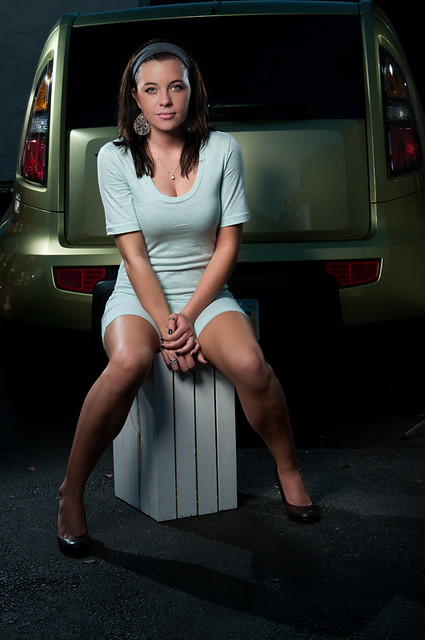
A personal project. I started a personal project last week, and it's going to run for a couple of months. I haven't really decided on a "due date" for myself, but we'll play it by ear. I found a while back that I really enjoy one softbox, high "butterfly" lighting. The shot you see above is just that. One soft box (in this case a 12" by 36" strip light) as high as I can get it above the subject pointing down at about a 75degree angle. It produces razor sharp shadows on the face, and is something different. Here's another example:

JRL_0717web

Admittedly, this doesn't look so good on women, but I'm going to try anyway. This is my assignment for a while. I'm going to grab anyone I can and take one light butterfly style photographs of them. I may end up putting them all in a coffee table style book, I may not do anything with them at all. I don't know...

All of that to say this.. Get out and shoot. Take some photos. See what peeks your interest. See what makes you happy. Go out and assign yourself some project whether it be photos of buildings, or cars, or different types of birds. Just go do something. Try to be creative though. Don't just do random shots of birds or cars. Really put some thought into it. Think about what works best, what doesn't. Try some things that you may not normally try. If you always take your car shots in nice even daylight, try going back at sunset, or better yet, just after the sun has dropped below the horizon. Try to take photos that you wouldn't normally take. You may surprise yourself in the end.... When I'm done, I'll share my project with you all. I'll show you what I've done. Until then Keep shooting, have fun! Jason
Read more on this article...

Tuesday, September 1, 2009

FP Revisited


Hey guys! A week or two ago I did a post on FP and the benefits and troubles with it. To be honest, the few times that I have used FP, it hasn't worked out so well for me. My subjects were always dark, I couldn't get consistent results, and I just wasn't happy. That is until Megan's senior session. As you can see above the results were astounding. I tried a different technique, and viola! it worked. Like I said when I started this blog, photography is ever changing and therefor a continual learning process. I'm always learning(or trying to learn) something new. So since I learned something new, I'm going to share it with you. I'm not the master with this, rather a humble(ok sometimes humble) pupil that does what he can to make great photos. Want to learn what I figured out with FP? Read on...

JRL_6325

Before I go any further, look at this photo. See how she is in total focus, but the background is that nice soft out of focus bokeh? That's because this was shot at f/4.0 at 1/3200th of a second and I used flash! Like we talked about in the previous post on Auto FP found HERE, Auto FP lets you shoot above the rated flash sync speed of 1/250th of a second by pulsing the light instead of one continuous pop of flash. The trade off of course is power. This is where I was getting hung up...

The amount of power that you loose when switching to Auto FP is considerable. With one SB800, it is conceivable that under normal circumstances and at a normal flash sync speed, I could light a group of say 4 people with one flash. This is do-able. I would set the light on a stand above my head and behind me, through a large(50inch) umbrella and have no problem. When I switch to auto FP however I wouldn't have a chance in... well you know where, at lighting the group. In fact, if I'm in auto FP mode, I need to bring that flash in close to the subject and remove the umbrella. How close are we talking here? Well, for the photo above the flash was about 1 foot from her face to the camera left. We took the domed diffuser off to get as much power out of the unit as possible, and just went with strait flash. The Nikon System should be able to adjust the power to shoot through a diffuser(say a small softbox), but we just didn't have one with us. All we had was a Trigrip diffuser and that was too large to work effectively. Back to the group shot, if I wanted to light that group shot I was talking about a little bit ago in auto FP, how many flashes would I need? I don't know for sure, it would depend on the amount of light I was combating, but suffice to say I would need a few. My best guess would be in the range of 4 or 5 flashes to light that same group.

So why go into auto FP at all? I mean, you could in essence close down your aperture, or put a neutral density filter on the lens, or go into spot metering mode... These are all good options, if that's the look you're going for. Lets look at the first suggestion, what if instead of shooting at f/4.0, I shot at f/11 on that shot above. What would happen? I would be able to shoot "normal" flash. I would be able to shoot at a reasonable shutter speed, and sync normally with the flash. However, I would get everything in focus. The house back behind the trees would be in focus, the trees themselves would be sharp and clear. I didn't want that. I didn't want the attention to move away from the subject. I wanted all eyes to go to Megan. So then, what about the neutral density filter? Couldn't I have put a 4 stop neutral density filter on my lens and lowered the light enough to shoot at f/4.0? Yes I could have, and that's not a bad idea. The only thing I don't like about that idea is actually carrying a neutral density filter around. I have enough stuff hanging off of me, and in my pockets that if I can eliminate something, I like to. Also, not all of my lenses have the same filter size. some are 77mm but one is 67mm. What to do there? Two filters? Maybe, but that gets expensive. So then how about spot metering just the subject? What happens if I meter for just Megan, and take the photo off of the light hitting her? She'll be rendered beautifully. She will be properly exposed, and look wonderful, but the background will be totally blown out. It will look like a large swatch of white behind her. I could do that in the studio on white seamless. The reason for coming out here to do the on location stuff was to add the environment, not blow it to oblivion with light. Spot metering is out, not an option here. So in hindsight would I change my approach? No I think I'll just stick with the Auto FP option.

When is Auto FP going to benefit you? Bright, sunny days. When the sun is out, and either falling on your subjects face or lighting your background to oblivion, you would use FP mode. When you want to keep that blurred out of focus background, but to do that you have to shoot at 1/2000, use FP. Want to read, and learn more about auto FP, or flash in general? Pick up This book, or visit The Strobist. Both have more information than any one person could take in at one time. Just because I'm really happy with the way they turned out, and because she was a beautiful model, here are a few more of Megan.

JRL_6284

JRL_6348-2

And my personal favorite:


JRL_6409

Have a good one. Jason
Read more on this article...
Thursday, August 27, 2009

News and some new products!


I love food... As if you couldn't tell that by looking at me... When they brought this to me at the wedding last weekend, it looked soo good I had to take a photo of it. This folks is the REAL reason I'm a wedding photographer, the free food! :~) In all seriousness, the folks at the BrookSide country club did a wonderful job of taking care of us while we were there. Thanks!

On to a little bit O' news....


The Nikon D700 has been listed as Discontinued at Best Buy... I got word this morning(in the form of an email) that there will be a new D700s available soon. Like the D300, it will have dual slots, and video capability. We'll see if it is true in the weeks to come.

According to a friend at Best Buy, the D300s will be available starting today(body only). If you've been holding out, or you just have to have the newest thing, get there today when the doors open at 10AM.

CNN reported this morning that Microsoft appologized for swapping the head of a black man for the head of a white man in an ad being distributed in Poland. If you want to see the before and after shots click HERE. Funny stuff.

If you haven't had a reason to get an Iphone up to this point, THIS is the tipping point. I am seriously considering getting an Iphone just for this app...(kidding) I would however appreciate it if someone would send a little note to the Chipotle people and tell them not to forget about us Blackberry users... I mean I want to order a burrito from my Storm too...

Last but not least, I told you all about a photo contest a couple of weeks ago over at

Kelby's Blog, where one lucky winner was going to get a plane ride to Florida, and shoot a FSU Game... Well the Tools over at Sports Shooter made such a stink about it, that FSU took back the field pass. I (along with many others) wrote a letter to the FSU athletic director expressing my displeasure. Don't know if it will do any good, but at least I tried.

That's all I've got for the day. Talk to you later. Jason
Read more on this article...
Wednesday, August 26, 2009

Making small flash big


I love this picture! It's my attempt to create an interesting reception photo by changing the viewers perspective, and do something a little different. I'd like to be able to tell you that I took this photo, but I'm not sure. You see to get this angle, I had my camera on a monopod extended all of the way out. There was a SB900 flash on top and a 12-24 wide angle on the camera. Triggering it all was done with a Pocket wizard. I was holding the mono pod up in the air above the group, and Shad was firing it from across the room with a pocket wizard... So I didn't actually press the button on the pocket wizard, but my idea, my composition...

Sorry I've been on hiatus the first half of this week. I was working on updating our website. It needed a face lift. I think it's getting there. I'm working on adding a blog to it now which should be active in a few days. Check it out by clicking Here. Many people have told me that they appreciate the posts about small flash and things that go along with it so I thought that today I would talk a little about some of the modifiers that we use.

Where to start, whew boy there are so many different types of modifiers available to the photographer that it's hard to know what to talk about first. Lets start closest to the flash unit itself. The domed diffuser or the small Tupperware piece of plastic that fits atop the flash unit is where my diffusion usually starts. This little piece of plastic is a semi transparent piece that spreads the light from the flash as soon as it leaves the flash head. It does a wonderful job of scattering the light right at the beginning of the lights journey. Anytime that I am looking for soft light, even if I'm using another modifier, I leave the domes on. In this game of flash, I want as much diffusion and soft light as I can get so I leave it on. A couple of things to note though, first putting this diffuser on will drop your available power by at least 1 stop. That's a given though. Anytime you diffuse or place a softener whether it be a domed diffuser, softbox, or an umbrella in from of a light source, it will loose it's potential power. With the high ISO's available to us now, I don't worry too much about it. I would rather have a soft beautiful quality of light with a little less power than a super powerful harsh light source that has absolutely zero quality to it. The second thing to note about these domed diffusers is that when they are attached to the flash head, the flash is zoomed to it's widest angle possible. This only applies to the SB800's and the SB900's. All of you folks working with the SB600's and have the sto-fen aftermarket diffuser, you don't have to worry about it. Some guys will notch out their domes where it makes contact with the little switch on the flash head so that they can zoom the flash while leaving the dome on.

A little further out from the domed diffuser you have a huge selection of modifiers. There are no less than 100 different major manufacturers producing all sort of modifiers, not to mention the knock off versions. I can't possibly tell you about all that there are out there, so I'm going to just give you a rundown of what I use. My diffusion system starts with
David Honl. The Honl system is comprised of multiple pieces of modifiers that work seamlessly together.


Photobucket

At the core of this system is the speed strap. It is a piece of Velcro that has a non slip material on the side that comes in contact with the flash. The strap gets wrapped around the flash head and secures to itself. Once you have this in place you can attach any of the accessories easily and quickly. Probably the most used piece in the collection is the the speed gobo. It has a white side and a black side to it. The gobo can be attached and used as a bounce card, or as a gobo. You can attach two of them and use them as barn doors. They are very versatile. The next pieces that I use from the set are the snoots. They come in two different versions, the 5inch and the 8inch. They work very well, and fold down flat for storage. The next piece that I use is the Speed Grid. The Speed Grid is a honeycomb shaped piece that is placed on the end of the flash and it directs the light in a more linear fashion. Great for a hair light, or when you want to spotlight just an individual. There is also a gel kit that is offered from Honl, but I still have a ton of gels left the I cut down myself. Maybe when those gels wear out, I'll order the ones from Honl.

The next modifier that in our arsenal is the Gary Fong Lightsphere. This little Tupperware looking unit is amazing. Most every wedding photographers that I know, uses this unit at some time during a wedding. Usually at the getting ready stage, and at the reception where things are happening fast that you don't want to miss. The unit itself is a dome that reflects the light in all directions allowing you to move from vertical to horizontal quickly without changing the flash orientation as with a stroboframe. Handy piece of equipment that I suggest for anyone doing events, or weddings.

On to the larger units. Shoot through umbrellas are the tried and true units for small flash photographers. If you want to soften the light and don't care where it scatters to, get an umbrella. They are cheap, and can be found at any camera store worth their weight.

Lastolite has two products that I really have been enjoying using lately. First the Tri-grip is a diffuser/reflector that is roughly triangle in shape with a sturdy handle at it's base. These units are easy to hold and manage with one hand and work great as either a reflector, or a shoot through diffuser. They are large so your flash becomes as large as the diffuser when firing through it. The second product I've been using lately is the Lastolite Softbox. This is a smaller softbox designed to be mounted on a monopod, or a light stand and have a small flash run through it. The quality of light coming from these two different modifiers is wonderful.

So that's it. That's the major collection of modifiers that we carry with us. Of course we have the standard round reflectors that most photographers carry. They work well, I have just fallen in love with the Trigrip so that's the unit of choice for me right now.

Alright, gotta run. Hopefully I'll see you all here again tomorrow. Jason
Read more on this article...
Thursday, August 20, 2009

Some new stuff....


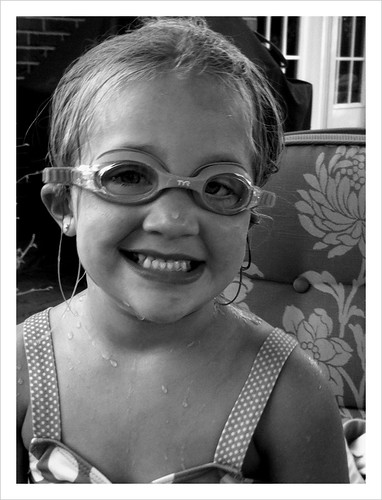
Isn't she beautiful? Can you believe she's only 3!? She's growing up soo fast that her mom and I are doing everything we can to keep her "young". Anyway you don't come here to read about my family : ) That shot was taken as a "test" shot to check lighting ratio's at my studio. It turned out to be the best photo that I've ever taken of her, go figure.... It's amazing how a great photo will turn up when you least expect it. You can spend hour or days planning a shot, get what you think is the shot of a lifetime and everyone else just shrugs their shoulders, then take a quickly composed, spur of the moment shot and everyone hails it as your best shot ever. It's crazy this thing we call photography. So on to some new products and news....


Drobo has a new(new to me anyway) business unit to go along with their traditional unit. The also have a rack mounted unit for server racks. If you are in need of easy to use backup hardware, Drobo is for you.

Midwest Photo Exchange has the new Elinchrom Ranger battery in stock. They don't have them online yet but I was talking to a friend there yesterday and he confirmed that they have the 1 head kits in stock for $1500.00. This may sound like a lot, but when you consider that these units have 400watt/second rating and are the size of a SB800, you'll see the value.

There is a contest going on to win a free ticket to photoshop world in Las Vegas! over at NAPP News. The contest ends tomorrow(Friday) so if you want a shot at it, better get over there. I entered my submission for the contest, so good luck! ; )

Terry White has a pretty good review of the Lastolite "Uplite". Click to read all about this great little product that is sure to make your life easier.


That's all I've got today. Busy day today. I'm working on a project that may lead to quite a few orders. See you all tomorrow! Jason
Read more on this article...
Tuesday, August 18, 2009

HighSpeed FP blessings and curses...


Hey Everyone. Glad to see you back. Lots going on at the studio these days. Wedding season is in full swing so that yields a shoot every Saturday, along with a couple of thousand images a week to edit. Along with the weddings we have multiple projects going on at once, as well as the normal portrait work. To say we're busy would be an understatement, so if I miss a day or three on here, please bear with me and keep checking back for more content. I didn't forget about anyone, I promise. The shot you are looking at is from a wedding we did at the Aston country club. It's a beautiful golf course, and banquet facility, that can accommodate 300+ people. The shot was taken outside of the Downstairs facility next to the beautiful stone work they have there. It was a wonderful setting for a wedding. Also as you can see our bride was beautiful and photogenic so it made our day that much more enjoyable. However the day didn't go without any hiccups. We have been playing around with Auto FP mode lately and it almost bit us in the butt. For those who don't know Auto FP stands for Auto High Speed Focal Plane mode. Never heard of it? Read on...


Auto FP or Focal Plane mode is a mode that allows you to sync your flash at up to 1/8000th of a second. This is great for working in bright light where you want to blur the background with a lower aperture or f/stop. Before we get into how it does that lets take a look at how a normal flash sync works.

The maximum flash sync speed of a camera is the fastest shutter speed that can be obtained while still firing a flash. Most cameras sync speed is between 1/125 and 1/250(reference your manual to find out for your models sync speed). What this means is 1/250th is the maximum period that the shutter will be fully opened so that it can register the entire flash. If you go above that you will start to get a dark line on either the top or the bottom of your image because the shutter was closing as the flash fired. Now if you're inside, or under an overcast sky, this isn't a problem. You can still have your aperture set at f/2.8 and be below your sync speed, but if it's a sunny day(like we had Saturday for this wedding) your shutter speed will increase beyond what the camera can sync at. So how do you still blur the background? Highspeed FP.

Highspeed FP or Focal Plane mode will allow you to sync your flash up to 1/8000 of a second and blur the background. It does this not by increasing it's output, but rather making a series of short flashes throughout the entire shutter cycle. The trade off is power. You have to be extremely close with the flash when you are using FP mode. It's almost a necessity that you have the flash off camera and close to the subject. For this photo:

_SR19721

The flash was just out of the frame literally 6 inches from her face. If it hadn't been that close, there wouldn't have been enough light output to illuminate her face and it would have been underexposed. Notice the nice creamy bokeh in the background? That was possible because of Auto FP. I'll explain. The settings for this shot were ISO200 f/4.0 at 1/800th of a second. Now if he hadn't been in FP mode when he took this image, and he tried to us f/4.0(to blur the background) the camera would have said HI. This means that the maximum flash sync speed(1/250 normally) wouldn't be fast enough, and the photo would have been over exposed. With FP mode he was able to take the picture at 1/800th and get the proper exposure while still using a flash to light the bride.

So auto FP sounds great right? I mean you can shoot faster shutter speeds and lower aperture while still using flash. It's great when you use it on purpose. The Nikon D300's and D700's that we use have a setting in the menu to adjust the maximum flash sync speed. You can have all of the way up to 1/250, but then there's a little option that says 1/250*. The little star means that you're in Auto FP mode. This means that as long as you're shooting at 1/250 or lower the flash will function normally. If however you go above that the camera will automatically switch to FP mode. We shoot in aperture priority mode which means that we select the aperture we want(because we like to control the depth of field) and the camera sets the shutter speed for us. This is bad in Auto FP mode. What happens is you set your aperture for the desired depth of field, and the camera will adjust the shutter speed. Sometimes that depth of field requires a shutter speed higher than 1/250 to make a proper exposure. When that happens, the camera automatically switches to Auto FP, and cuts your flash output dramatically. You have to keep an eye on your shutter speed when in this mode, otherwise you will end up with severely underexposed images. This happened to us on Saturday. Luckily we caught it quickly and corrected the problem by taking the camera out of Auto FP mode.

So to recap, Auto FP is awesome! Just make sure you keep an eye on your light/subject distance, and your shutter speed. Before I go, one more great image from Saturday:

_SR20406

Image by Shad Ramsey/RedDoor Photography All post processing by Me. Have a great day guys! Jason
Read more on this article...